Android (Jetpack Compose)
Capture the screens of a Jetpack Compose app and put them in your Scry project, where they are browsable build by build, and searchable by your AI assistant through the MCP server. This page walks through scry-sample-android, a small Compose app called Kettle, from clone to a build in your project, then shows how to do the same for your own app.
No code of yours is uploaded. Scry receives PNG screenshots and a small manifest, nothing else.
How capture works for native apps
Capture for SwiftUI and Compose is a reference script that lives in the sample app and in the Scry skill. It is not a built-in Scry command: you copy the script into your project, and the only Scry command involved is scry upload (run as npx @scrymore/scry-deployer upload). React Native is different: it has a built-in scry capture rn command, see React Native.
Before you start
- JDK 17 and the Android SDK (platform 34) with an emulator (AVD) running, or a device reachable by
adb. - Node.js 18 or later, which runs the Scry CLI through
npx. - A Scry project and a project API key (below).
Get a project API key
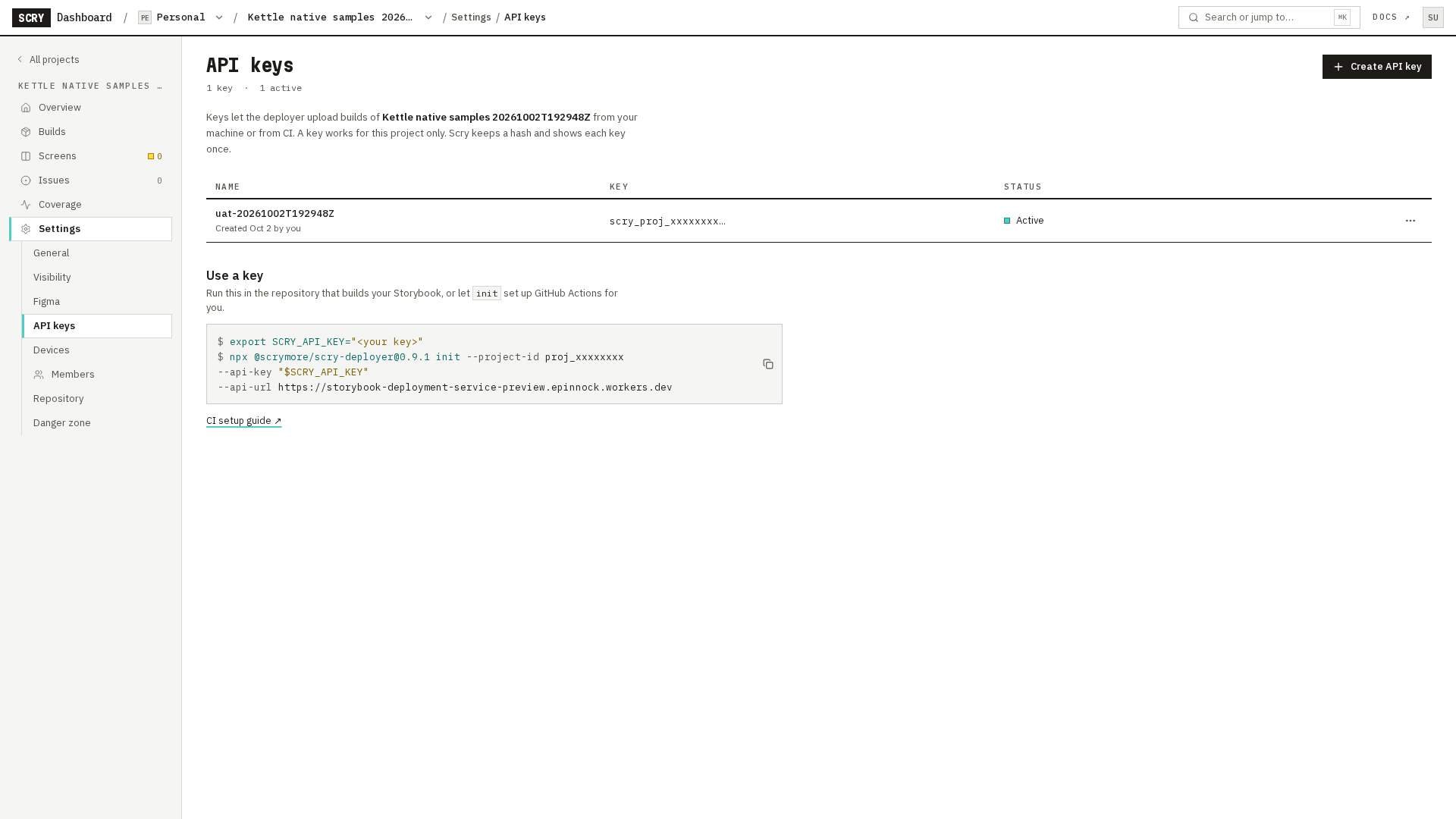
In the dashboard, open your project, then Settings ▸ General for the project ID and Settings ▸ API keys to generate a key. Keys are project-scoped: a key only uploads to the project it was created in. Copy the key when it is shown and keep it out of chat and committed files.
1. Get the sample app
Clone the Kettle sample app, a small coffee-order app with three screens and two components. Build it with the Gradle wrapper and install it on a running emulator, then start it with adb. Kettle opens on its Menu screen, which is what Scry will capture.
git clone https://github.com/scryorg/scry-sample-android.git
cd scry-sample-androidecho "sdk.dir=$ANDROID_HOME" > local.properties
./gradlew :app:installDebug
adb shell am start -n com.scrymore.kettle/.MainActivityThe first line points Gradle at your Android SDK (the file is gitignored; ANDROID_HOME must be set). :app:installDebug builds the debug app with the Gradle wrapper pinned in the repository and installs it on the running emulator and ends with BUILD SUCCESSFUL. The last line starts the app and prints Starting: Intent { cmp=com.scrymore.kettle/.MainActivity }. The screens are Menu, Item Detail and Order; the components are Button and QuantityStepper.
You can also open Kettle from the launcher icon instead of running the last command.
2. Capture your screens
Run the capture script. It starts the app once for each registered screen, passing the screen id as an intent extra, and takes a screenshot with adb. When it finishes, .scry/capture holds one image per screen and a small manifest file.
bash scripts/capture.shcapture: screens-menu ok ({{n}} bytes)
capture: screens-item-detail ok ({{n}} bytes)
capture: screens-order ok ({{n}} bytes)
capture: components-button ok ({{n}} bytes)
capture: components-quantity-stepper ok ({{n}} bytes)
scf: 5/5 captured, 0 skipped -> .scry/capturels .scry/capture .scry/capture/imagesIn the expected output, a placeholder in double braces stands for a number. The intent extra is scry_screen, and the bundle is a Scry Capture Format bundle. The five captures are Menu, Item Detail, Order, Button and QuantityStepper. If a screen never reports that it is ready, the script says so (capture: <id> never reported ready), lists it under counts.skipped in the manifest and exits 1, so a half-captured run never looks successful.
Add one of your own screens
Open ScryScreens.kt (under app/src/debug/java/, so it never ships in a release build) and add one line to the registry: an id, a display name, the screen's source file and line, and the composable with its fixed data. Add the matching entry to scripts/screens.json, which is the list the capture script reads. Run bash scripts/capture.sh again and the bundle holds six captures.
The id is the screen's identity across builds. Use a route or type name, never a title a person might edit.
3. Check the bundle
Check the bundle before you send anything. Run the upload command with the dry-run flag. It validates the bundle with the same validator the real upload uses, then stops. Nothing leaves your machine, and no key is needed.
npx @scrymore/scry-deployer upload .scry/capture --dry-runValidating .scry/capture ...
✅ Bundle valid: 5 captures, source compose-preview:android.
Dry run: not uploading. Bundle ZIP: {{*}}The source line comes from the manifest: compose-preview:android is how Scry knows this is Compose on Android. A rejected bundle prints every problem with its code (see Troubleshooting).
A valid bundle can still be a short one
The validator accepts a bundle that is missing screens, because the manifest lists them as skipped. Check the count in Bundle valid: N captures against the number of screens you registered, and look at the images in .scry/capture/images/ for a keyboard, a permission dialog, a loading spinner or a clipped status bar.
4. Upload
Now upload. Set your project id and API key as environment variables, then run the same command without the dry-run flag. It validates the bundle again, stores it, and prints the build number once the upload is queued for indexing.
export SCRY_PROJECT_ID=proj_xxxxxxxx
export SCRY_API_KEY=sk_live_xxxxxxxxReplace both placeholders with the values from your project. The placeholders above are not real and are rejected if you use them.
npx @scrymore/scry-deployer upload .scry/captureValidating .scry/capture ...
✅ Bundle valid: 5 captures, source compose-preview:android.
Bundle stored ({{*}}, build #{{n}}).
Bundle complete: attempt 1/3, {{*}}, timeout {{n}} s...
Bundle complete: sent {{*}} in {{*}} s (attempt 1/3).
✅ Bundle uploaded (build #{{n}}).
⏳ Indexing has been queued, not finished. Components are searchable once the build shows processingStatus "completed".The CLI reads SCRY_PROJECT_ID and SCRY_API_KEY itself. You can pass --project and --api-key instead, but then the key sits in your shell history, so prefer the environment.
5. See it in Scry
Open your project in the dashboard. The new build appears in the Builds tab with the source Compose · Android and a device line: your emulator's name, scale and screen count, for example Pixel 6 · 2.63× · 5 screens. Open the build to see them on its Capture tab.
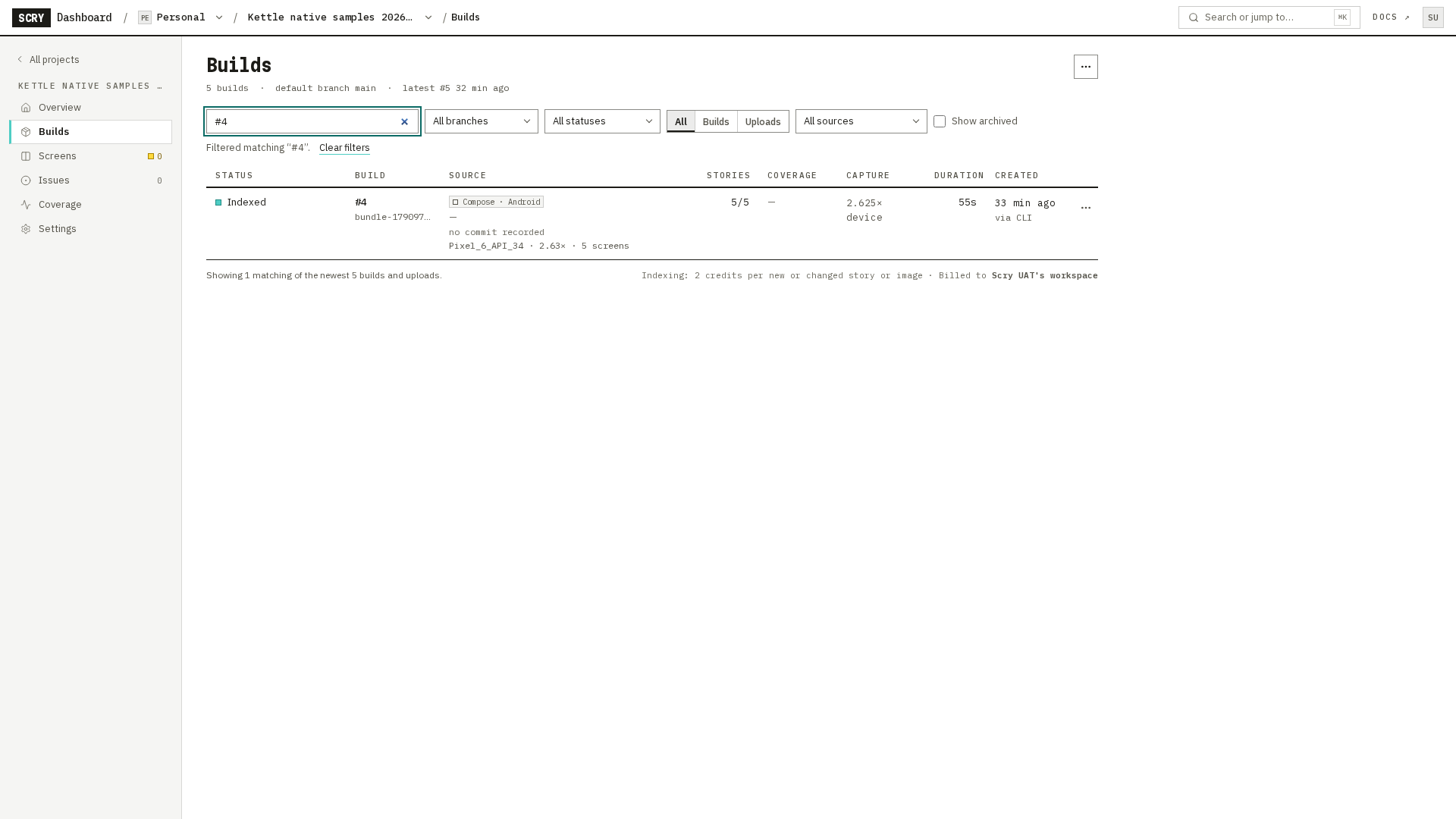
A native build has no Storybook behind it, so there is no "Open in Storybook" link. The Builds tab, the source chips and the project's other capture sources are covered in Capture sources.
Use it
Once the build is indexed, its screens are searchable. This recording runs the same search the MCP server runs, for quantity stepper. A result from this build carries a Source line naming the Kotlin file and line in your code, plus its platform and source type; ranking depends on what else is in your project.
A result from this build shows Source: <file>:<line>, the source file and line recorded in the capture, instead of a Storybook link. The search API response also carries the build's source_type and platform.
- Ask your assistant. Connect the MCP server and ask for a screen in plain words, for example
quantity stepper. Each result names the screen and, when the capture recorded a source file, where it lives. - See the builds in the dashboard. The Builds tab lists each build with its source, device and screen count; the Capture tab shows the device, scale and screens.
- Link screens to designs. Linking a native screen to a Figma frame from the Scry Link plugin is not available yet.
Put it in CI
The sample ships two GitHub Actions workflows in .github/workflows/:
ci.ymlbuilds and tests the app on every pull request, on a GitHub-hosted runner, with no secrets.scry-capture.ymlcaptures and uploads, on an Android emulator runner, only on a push to the default branch. Pull requests from forks never reach it, so your key is never exposed to code you did not review.
Add the project id as a repository variable and the key as a repository secret:
| Where | Name | Value |
|---|---|---|
| Repository variable | SCRY_PROJECT_ID | your project ID |
| Repository secret | SCRY_API_KEY | your project API key |
The upload step in the workflow is the command from step 4:
      - name: Upload to Scry
        run: npx @scrymore/scry-deployer upload .scry/capture
        env:
          SCRY_PROJECT_ID: ${{ vars.SCRY_PROJECT_ID }}
SCRY_API_KEY: ${{ secrets.SCRY_API_KEY }}Make it your own
To turn the sample into a build in your own project, change four things:
- The bundle id (the app's identifier) to your own, so the capture script launches your app.
- The screens list in
ScryScreens.kt: replace the Kettle screens with yours, each with a stableid. - The project id:
SCRY_PROJECT_ID. - The key:
SCRY_API_KEY, from your project's Settings ▸ API keys.
Set up your own app with the Scry skill
Wiring an existing app for capture is the part of the native path that takes real work: your app needs a way to open one screen on its own, with fixed data and no sign-in, so the screenshot is the same every run. (React Native needs far less, because scry capture rn drives your Storybook directly.) The scry-native-capture-setup skill does that wiring with your AI coding assistant.
- Install the skill in your app's repository:
npx skills add scryorg/scry-node --skill scry-native-capture-setupThe installer works with Claude Code, Codex and Cursor, and needs Node.js 22.20 or newer; see Set up with AI for the details.
Ask your assistant:
Set up Scry capture for this app.
The skill inspects your project and asks only what it cannot find: which screens matter, your project id, and whether you want CI. It adds:
- a launch handler,
ScryLaunch.kt(about 30 lines), that reads thescry_screenintent extra and shows only that screen. A normal launch is unchanged; - a registry file,
ScryScreens.kt, mapping each screen id to its composable; - fixtures, so each screen renders without sign-in or network;
scripts/capture.shandscripts/make-scf.mjs;- optionally, the CI workflow.
- a launch handler,
It checks its own work when it can. If an emulator is available where the assistant runs, it runs
capture.shandupload --dry-runand shows you the screenshots; otherwise it lists the commands for you to run. It never uploads, and never touches your API key, without your go.Tools needed on the machine or runner: JDK 17, the Android SDK with an emulator, Node.js, and the Scry CLI (
npx @scrymore/scry-deployer).
The skill adds no dependency to your app and does not change a release build: the capture paths run only when the app is launched with the capture argument. It does not cover UIKit-only apps. For a Flutter app, see Flutter.
What the skill adds, if you would rather do it by hand
The sample app is the worked example of each piece. Copy them from scry-sample-android:
| Piece | File | What it does |
|---|---|---|
| Launch hook | ScryLaunch.kt | reads the scry_screen extra; renders only that screen |
| Screen registry | ScryScreens.kt | one entry per screen: id, name, source file and line, the composable |
| Fixtures | Fixtures.* | fixed data written from your app's own model types, so a screen never waits on the network or the clock |
| Capture script | scripts/capture.sh | opens each screen, waits until it reports ready, takes the screenshot, then calls the bundle writer |
| Bundle writer | scripts/make-scf.mjs | writes scf.json and images/<id>.png |
| CI | .github/workflows/scry-capture.yml | captures and uploads on a push to the default branch |
Wire the launch hook into your app's entry point so that a normal launch shows your usual first screen and only the capture argument selects a single screen.
For another tool, or for a script of your own, the bundle format is documented on Capture bundle format.
Troubleshooting
HTTP 401 Unauthorized - Authentication required The upload reached Scry without an API key. The service's own message is Missing X-API-Key header. Check that SCRY_API_KEY is set in the shell that runs the upload (test -n "$SCRY_API_KEY" && echo set || echo missing), then run it again. In CI, check that the repository secret exists and that the workflow passes it in env. If the response carries a request id, the CLI prints a Ref: line; quote it when you contact us.
HTTP 401 Unauthorized - Invalid API key format The value is not a Scry project key. The placeholder sk_live_xxxxxxxx on this page produces exactly this error; copy a real key from Settings ▸ API keys.
HTTP 403 Forbidden - Project mismatch The key belongs to a different project than the one you uploaded to. A key only works for the project it was created in: use the key from the same project as SCRY_PROJECT_ID.
❌ --project is required to upload. SCRY_PROJECT_ID is not set and no --project was passed. --dry-run works without it; a real upload does not.
❌ The bundle was rejected by the Scry Capture Format validator. Nothing was uploaded. The lines below it name the problem and its code. Four you may meet:
  error DUPLICATE_ID [menu]: Duplicate capture id (2×): menu
  error IMAGE_HEADER_UNREADABLE [menu]: Could not read image dimensions from the header: images/menu.png
  error STRUCTURE_PATH_INVALID [Screens/Home--Default]: structure.file must be a .json path under structure/: structure/evil.html
error FORBIDDEN_MEMBER [structure/evil.html]: Bundle member is not referenced by any capture: structure/evil.htmlDUPLICATE_ID means two entries in your screens list share an id: each screen needs its own. IMAGE_HEADER_UNREADABLE means a screenshot file is empty or cut short, which usually follows a capture that was interrupted: run bash scripts/capture.sh again. STRUCTURE_PATH_INVALID means a capture's structure.file points at something that is not a .json file under structure/ (an .html file, for example): point it at the structure tree your adapter wrote, or drop the structure entry. FORBIDDEN_MEMBER means the bundle holds a file that no capture refers to (here the stray structure/evil.html): delete the extra file from the bundle folder and run the capture again, so the folder holds only scf.json, the images and the files the manifest names.
scf: 4/5 captured, 1 skipped and exit code 1. A screen never reported ready, so its image is missing. The capture script names it: capture: <id> never reported ready. Open that screen by hand with the launch extra, fix what blocks it (usually data that waits on the network, a sign-in, or a permission prompt), and capture again. upload --dry-run still says the bundle is valid with four captures, because the skipped screen is listed in the manifest, so do not treat a short count as success.
The build is in the Builds tab but has no screens yet. Indexing runs after the upload: the CLI prints Indexing has been queued, not finished and the screens become searchable once the build is processed. Refresh the Builds tab in a minute.
A simulator or emulator problem. If the script prints capture: adb not found (install Android platform-tools), install the Android platform-tools. Otherwise run adb devices to check that an emulator or device is listed as device, start an emulator, and run the script again. If you cannot get a device running, the skill stops and prints the exact commands for you to run instead of claiming a capture.
For problems with the Scry CLI itself, see Troubleshooting.
Privacy and data
An upload sends the bundle and nothing else from your project: the PNG screenshots, and scf.json, which lists each screen's id, name, title, its device and scale, and the source file and line you registered for it (a path and a number, not the code). The upload also carries the commit SHA and branch name it is run from (read from your CI environment or the local git checkout). No source text is uploaded: --include-source, the option that would also upload each capture's source file, is off by default and this page never uses it.
The capture script runs entirely on your machine, and the Scry skill never uploads without your go. The CLI reports errors to Scry's error tracker (errors only); set SCRY_TELEMETRY=0 or DO_NOT_TRACK=1 to turn that off.
Feedback and support
Something broke or felt wrong? Tell us on the feedback form or email feedback@scrymore.com. Include the Ref: line from the CLI if it printed one.
Changelog
- First version of this page.