Component Requests
A designer draws a component in Figma that has no code yet. With component requests, they select it in Scry Link and press Request this component. Scry opens a GitHub issue in your project's repository with a preview, the component's variants and properties, a link back to the Figma node and any notes. The Figma node remembers the request, so everyone who opens the file sees Requested · #9 instead of a component that quietly never gets built.
It is for design-system teams where designers work in Figma and engineers work from GitHub issues. Designers don't need a GitHub account: the issue is opened by the Scry GitHub App and names the person who asked.
Before you start
You need:
- A Scrymore account and a project. Requests are signed-in only: each one is attributed to a person, and it goes to your project's repository.
- Member access to the project with edit rights. Viewers can see requests but can't file them.
- A GitHub repository connected to the project. A project admin does this once, in the dashboard.
Connect a GitHub repository
- Open the project in the Scrymore dashboard and choose the Repository tab. Only project admins can change it; other members see it read-only.
- Under Connect GitHub, click Install GitHub App. GitHub opens the install page for the Scry GitHub App.
- Choose the account or organization, then pick Only select repositories and select the repository that holds these components. (All repositories works too, but you rarely need it.) If your organization requires approval, the dashboard says GitHub installation requested and an organization admin has to approve it before you continue.
- GitHub asks you to authorize the App, then sends you back to the Repository tab. Scry checks that the installation belongs to your GitHub account before saving anything.
- Under Repository URL, enter the repository's GitHub URL (for example
https://github.com/acme/design-system) and click Save repository. - Click Validate access. The badge next to the repository reads Connected when the App can see it.
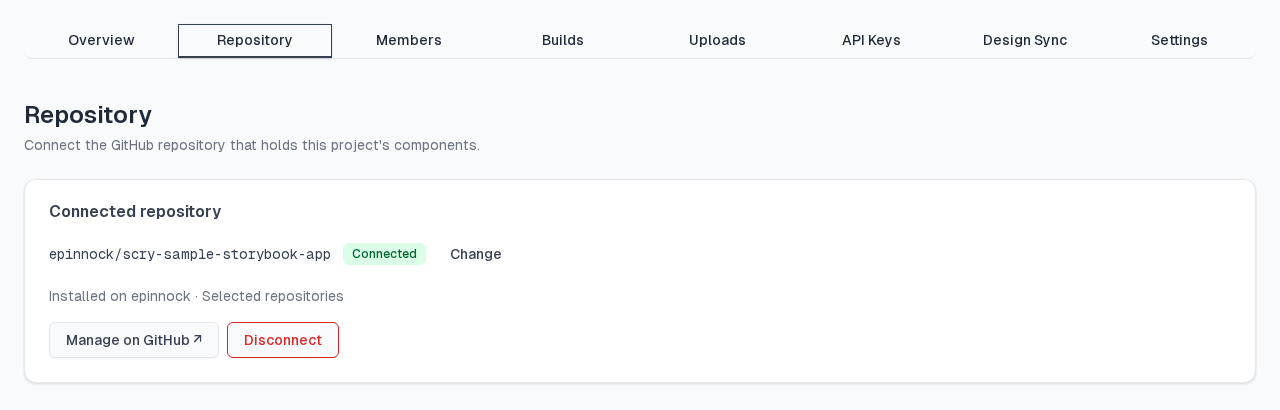
If the badge reads Access needed, the App is installed but can't see this repository. The tab says so (The Scry GitHub App is installed on … but cannot see …): click Manage on GitHub ↗, add the repository to the installation, and click Validate access again.
Disconnect removes the installation from the project (you confirm first). You can reconnect later; existing issues stay on GitHub. To remove the App from GitHub entirely, uninstall it in your GitHub settings.
Request a component from Figma
1. Select the component
In Scry Link, select a component or component set that has no story linked. Selecting a variant or an instance works too: the request targets the component set, or the instance's main component. Under the story list you see a card, No story for this yet?, with your repository and a Request this component button.
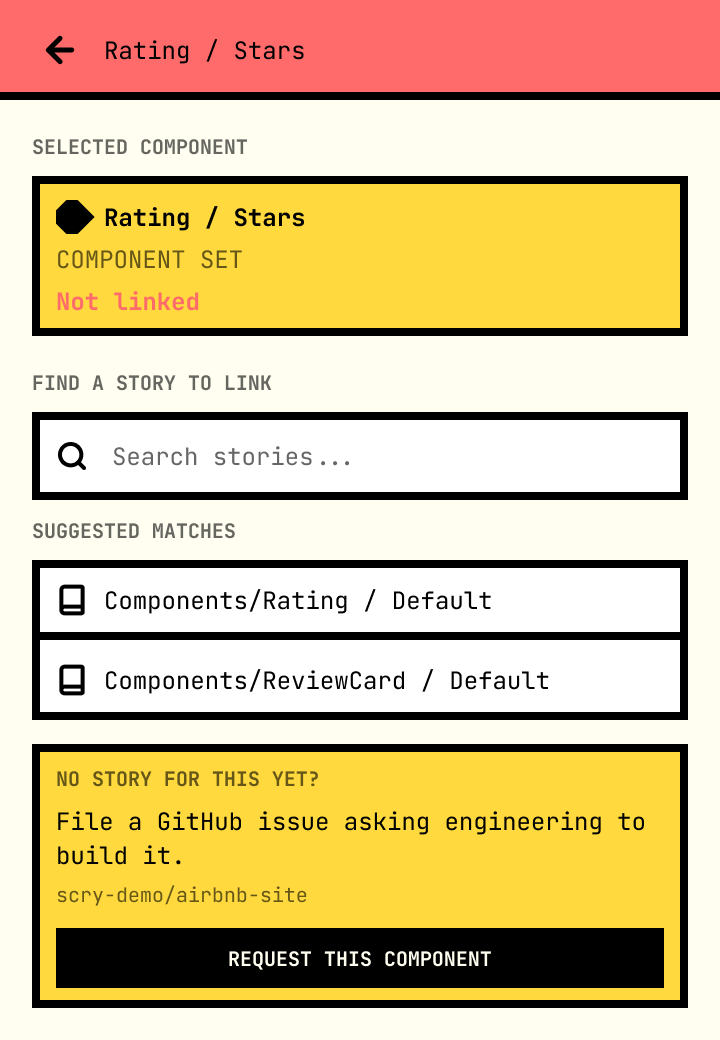
Frames and screens can't be requested; the card appears only for components.
2. Check the details
Press Request this component. Scry Link checks two things first:
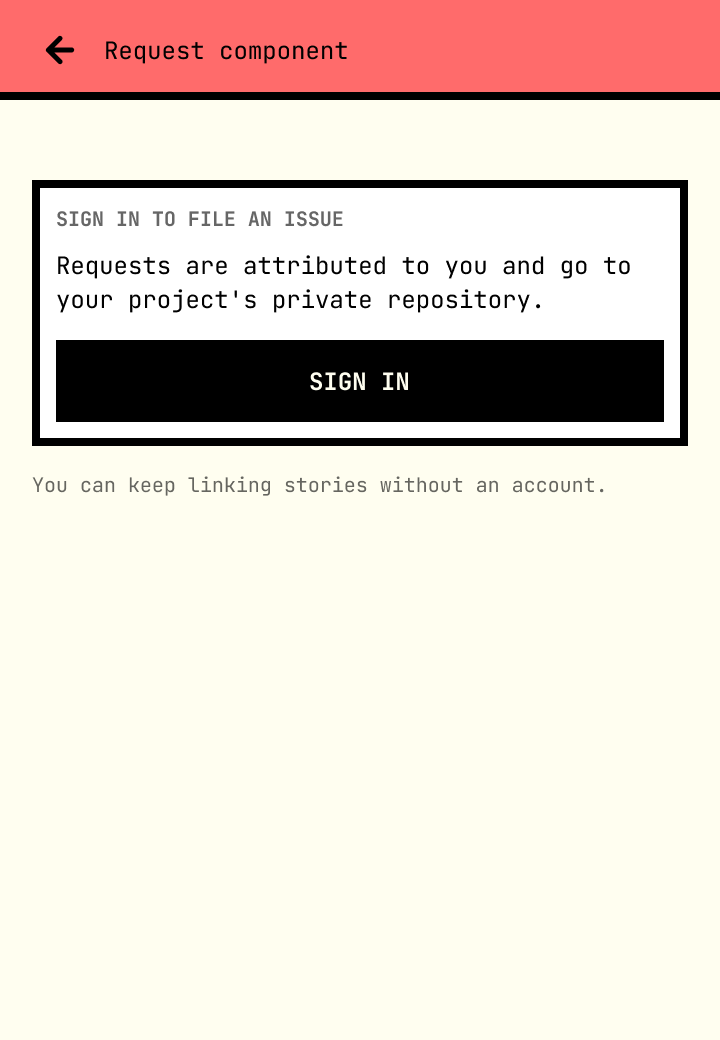
- Signed out? You see Sign in to file an issue. Press Sign in and approve the code in your browser (the same device-code sign-in the plugin already uses). The plugin comes back to the form for the same component. Linking stories keeps working without an account.
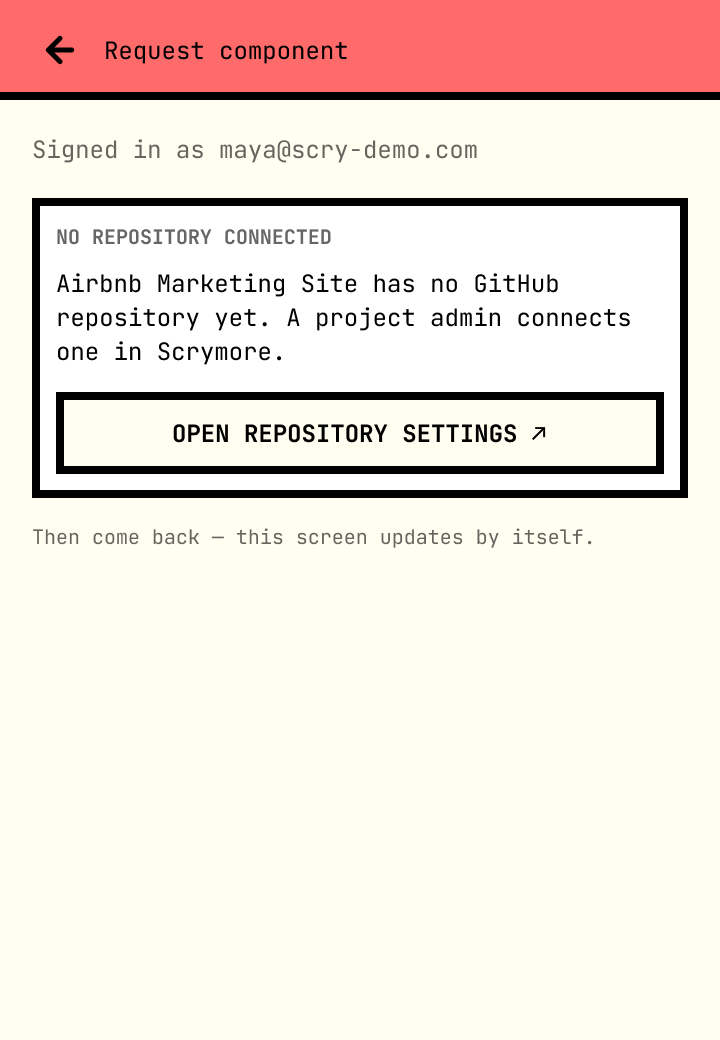
- No repository? You see No repository connected and Open repository settings ↗, which opens the project's Repository tab. Once an admin connects one, come back: the screen updates by itself.
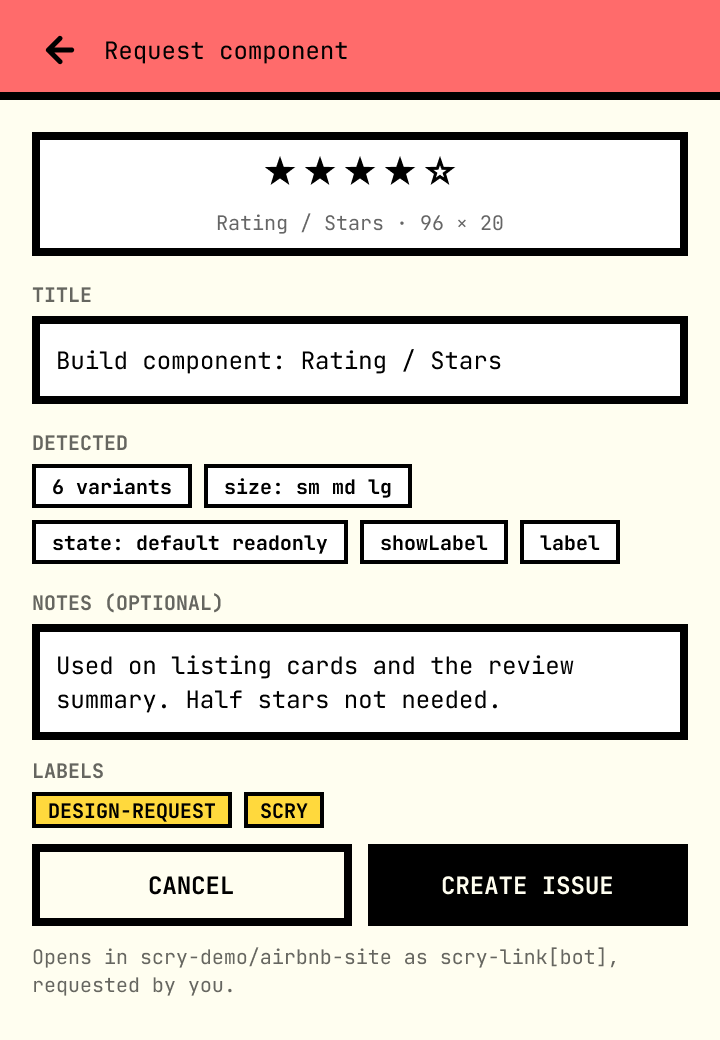
Then the form opens:
- Preview: a 2x PNG export of the component, with its name and size.
- Title: prefilled
Build component: <name>. Edit it if you like. - Detected: the variant count and each property, read from the component (for example
2 variantsandsize: sm md lg). These are read-only. - Notes (optional): anything engineering should know, up to 2,000 characters.
- Labels:
design-requestandscry.
The line under the buttons says where the issue opens (Opens in owner/repo as scry-link[bot], requested by you).
3. Create the issue
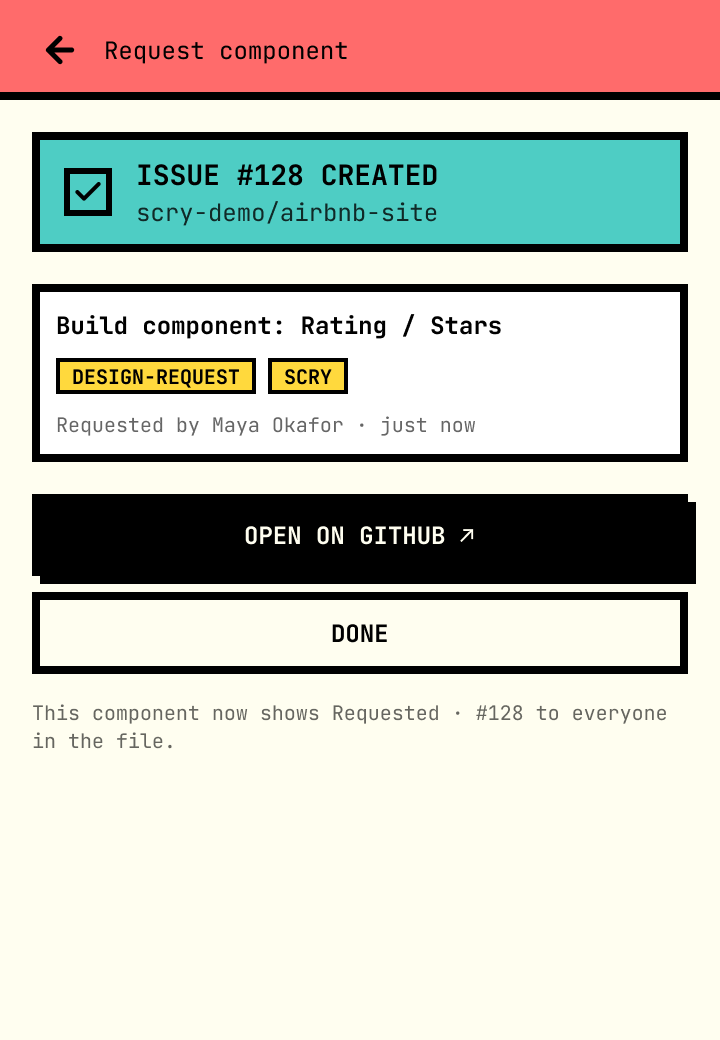
Press Create issue. The plugin shows Creating issue… with its two steps (exporting the preview, opening the issue), then Issue #N created with the repository, title and labels, Open on GitHub ↗ and Done.
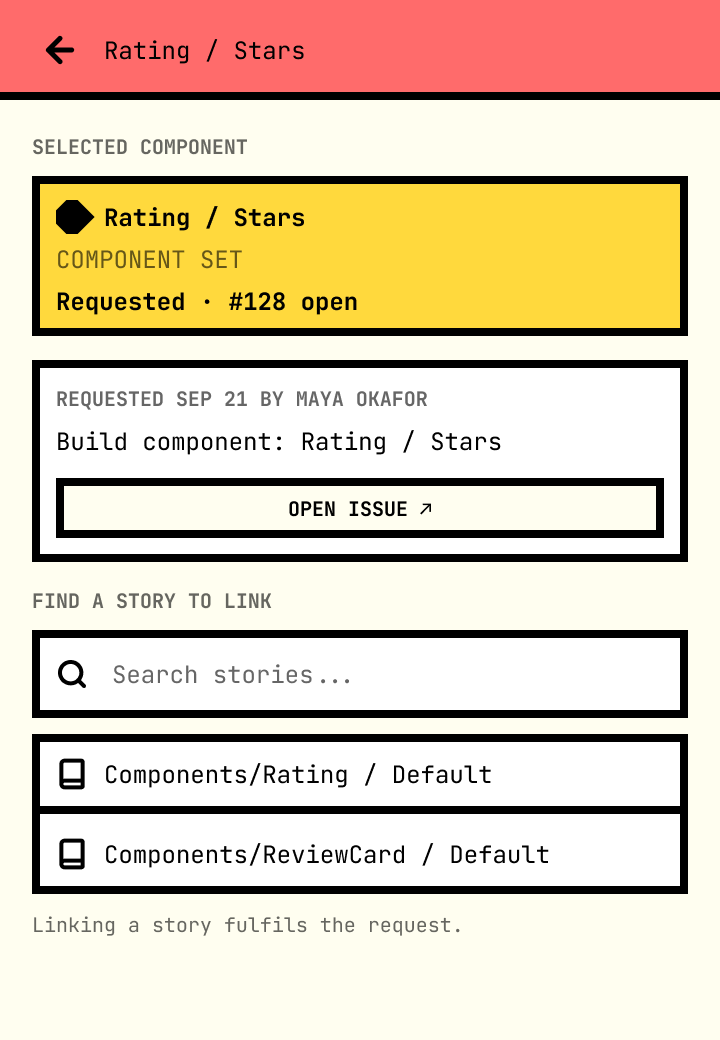
From then on the node shows Requested · #N open and a card with the requester, the date and Open issue ↗, above the story search. The request is stored on the node with Figma's shared plugin data, so collaborators see it without signing in; signed-in users also get the current status from Scrymore.
Each component can have one active request. Requesting it again shows the existing request instead of opening a duplicate.
What the issue contains
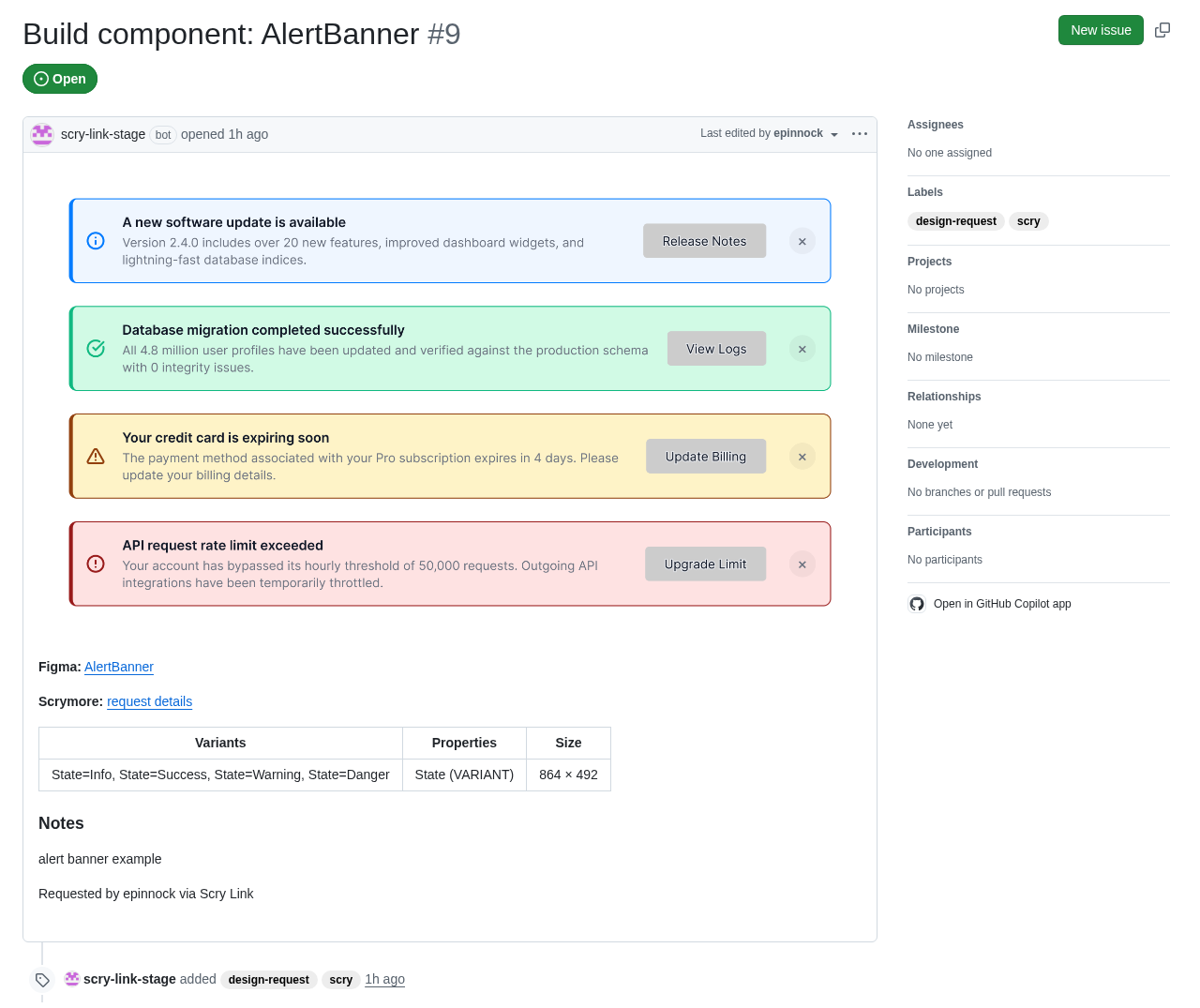
The issue is opened by the Scry GitHub App (scry-link[bot]) and contains:
- the preview image,
- Figma: a link to the node,
- Scrymore: a link to the request in the dashboard,
- a table of variants, properties (with their types) and size,
- your Notes, if any,
- Requested by <name> via Scry Link,
- a hidden marker,
<!-- scry-component-request:<id> -->, that ties the issue to the request.
It gets the design-request and scry labels. If the repository refuses the labels, the issue is opened without them rather than failing.
scry-link-stage.)Notes are treated as untrusted text. @mentions and #123 references in them are neutralised, so a note can't ping people or cross-reference other issues, and HTML comments are stripped so a note can't forge the marker.
Track requests in the dashboard
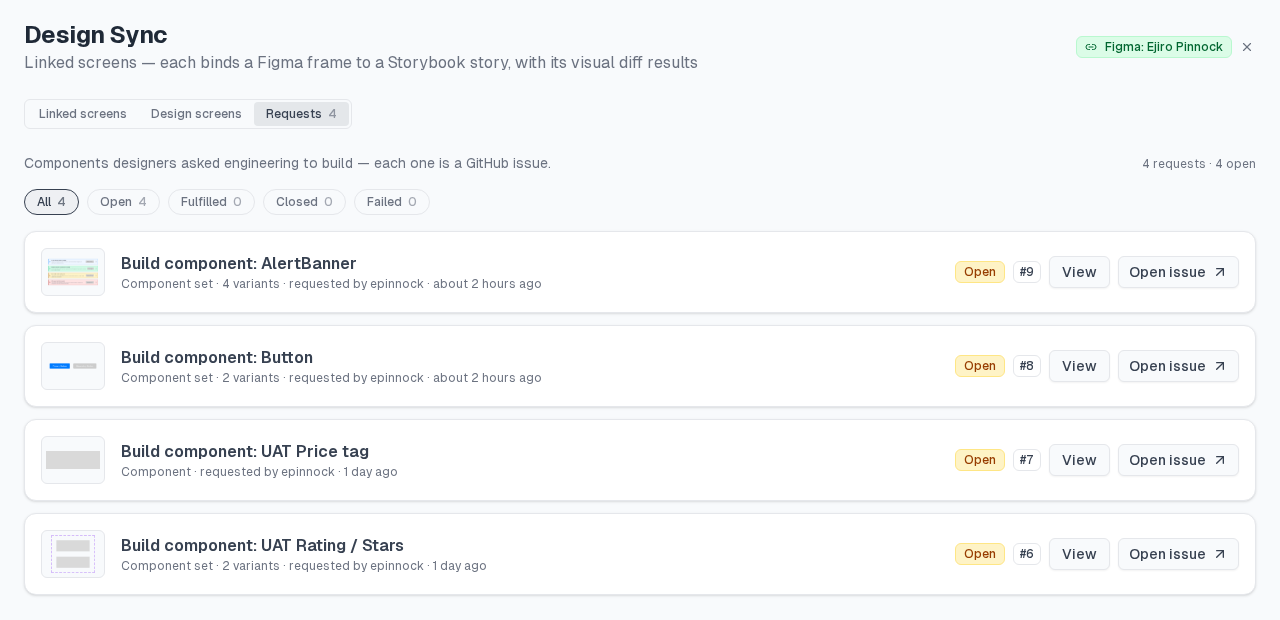
In the project, open Design Sync and choose Requests in the view toggle. Each row shows the preview, the title, whether it is a component or a component set, the variant count, who asked and when, a status badge, the issue number, View and Open issue ↗. Filter with All, Open, Fulfilled, Closed and Failed.
View opens the request: a large preview, variants grouped by property, properties, notes, the GitHub repository, issue number and state, and a timeline (Requested → Issue opened → Story linked → Fulfilled). Open in Figma ↗ jumps to the node. The request details link in the issue opens this dialog directly.
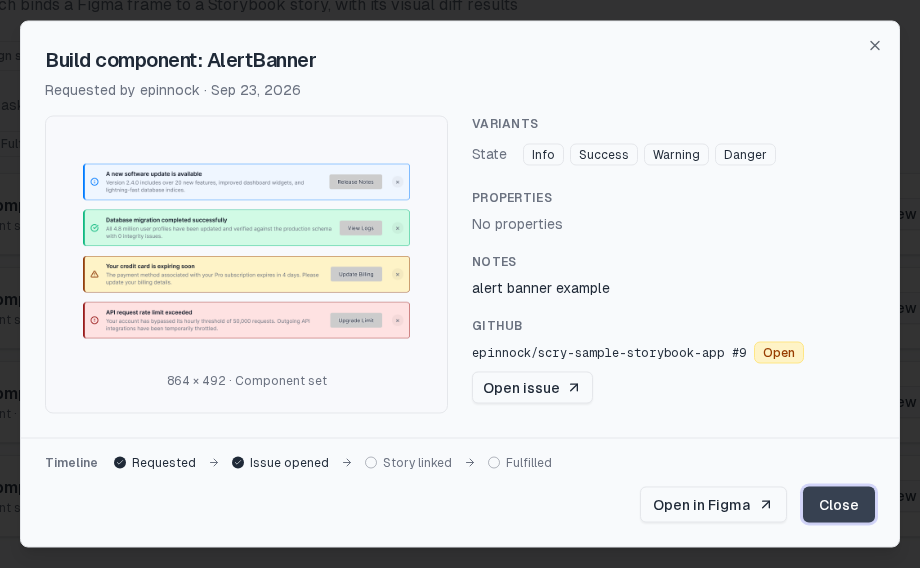
When the issue is closed or reopened on GitHub, the request follows it.
When GitHub refuses the issue
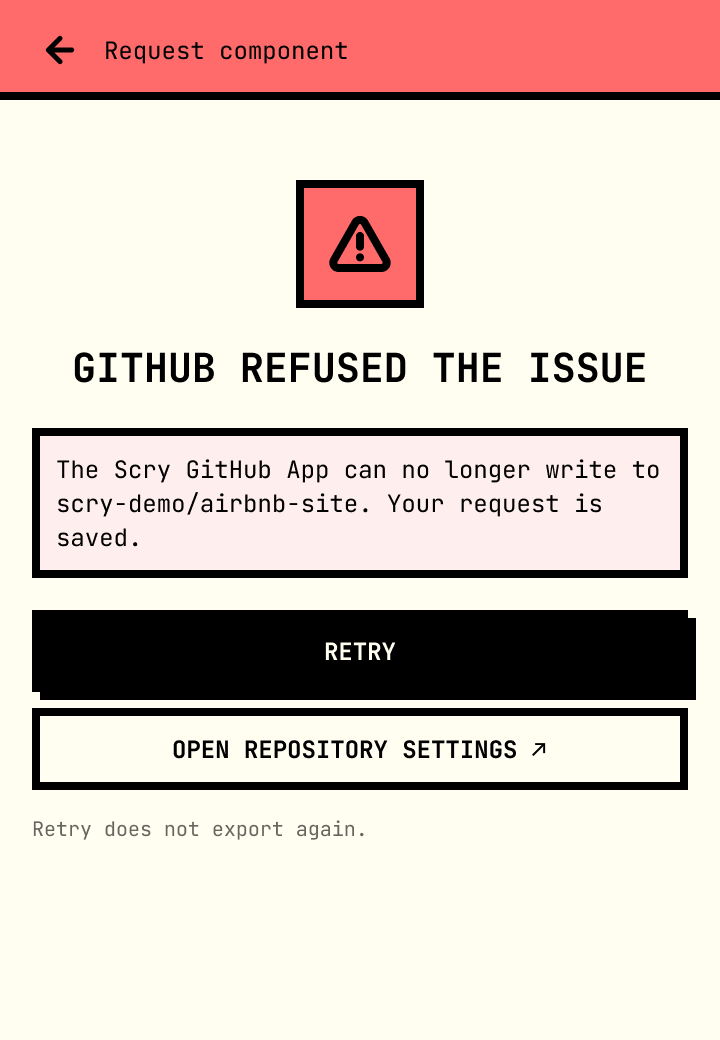
If GitHub rejects the issue (the App lost access to the repository, the installation was suspended, or GitHub was down), your request is still saved. The plugin says GitHub refused the issue and offers Retry and Open repository settings ↗; the row appears under Failed in the dashboard with its own Retry button. Retry only repeats the GitHub step, it doesn't export the component again. Fix the access first (see Connect a GitHub repository), then retry.
Permissions and privacy
What the GitHub App can do. The Scry GitHub App asks for Issues (read and write) and Metadata (read), on the repositories you choose. It can't read or write your code, pull requests or settings. Scry uses it to open request issues and to hear when they close or reopen.
Who can do what. Any project member except viewers can file requests. Only project admins can connect, change or disconnect the repository. Requests without a valid sign-in are rejected.
Requester attribution. The Requested by name comes from your signed-in Scrymore account: your profile or sign-in provider's display name, or, if there is none, the part of your email before the @. Your full email address never goes into the issue, and the plugin can't set the name.
The preview image. The PNG is stored by Scrymore and shown in the issue through an unguessable signed link, so it displays in private repositories without Scry needing write access to your code. Anyone who has that link can open the image, the same as anyone who can read the issue. Nothing is committed to your repository.
What stays in Figma. The node stores the request id, issue number and URL, repository, title, requester name and date as shared plugin data. Your sign-in token is never stored in the file.
Limits
- Fulfilment isn't automatic yet. The plugin says Linking a story fulfils the request, and the timeline has Story linked and Fulfilled steps, but linking a story doesn't mark the request fulfilled or comment on the issue yet. Close the issue on GitHub when the component ships.
- The timeline shows only the request date. Later steps show their state, not when they happened.
- Components only. Frames, screens and pages can't be requested.
- One active request per component. A second request shows the existing one.
- Signed-in only, with a connected repository.
- The preview export must be under 5 MB. Very large components may need to be requested from a smaller variant.
Troubleshooting
"No repository connected" in the plugin. The project has no repository, or you picked no project. Choose the project, press Open repository settings ↗, and ask a project admin to connect one. The plugin screen updates by itself once it's connected.
"Grant the Scry GitHub App access to this repository in Scrymore." The App is installed but can't see the saved repository. On the Repository tab, click Manage on GitHub ↗, add the repository, then Validate access.
"GitHub refused the issue." Your request is saved. Check the repository's access as above, then press Retry in the plugin or in Design Sync → Requests → Failed.
"Sign in to file an issue." Requests need a Scrymore account. Press Sign in and approve the code in your browser; the plugin returns to the form for the same component.
"Viewers cannot request components." Your project role is viewer. Ask a project admin to change your role, or ask a member with edit access to file it.
"The preview exceeds 5 MB." Request a smaller variant, or reduce the component's size.
The Repository tab shows an error after installing the App. The messages explain the cause: the connection attempt expired, the installation belongs to another GitHub account, or you finished in a different browser. Start again with Install GitHub App in the same browser.
No request card on a component. It already has a story linked, it is a frame rather than a component, or your Scry Link version doesn't include requests yet. Close and re-run the plugin to load the latest release.
Something else? Tell us on the feedback form or email feedback@scrymore.com.