Capture a Flutter app
Capture the screens of a Flutter app and put them in your Scry project, where they are browsable build by build and searchable by your AI assistant through the MCP server. This page walks through scry-sample-flutter, a small Flutter app called Kettle, from clone to a build in your project, then shows how to do the same for your own app.
No code of yours is uploaded. Scry receives PNG screenshots and a small manifest, nothing else. No widget tree and no source text leave your machine.
How capture works for Flutter
Flutter capture is a reference script that lives in the sample app and in the Scry skill. It is not a built-in Scry command: there is no scry capture flutter. You copy the script into your project (or let the skill add it), and the only Scry command involved is scry upload (run as npx @scrymore/scry-deployer upload).
Which Flutter apps this covers
- Flutter apps for Android and iOS. Each screen is rendered by your own Flutter code and saved as a PNG.
- Two ways to capture, one bundle format. On an emulator or simulator the screens are drawn by the app running on that device, at that device's screen size and pixel density, and the build is labelled Flutter · Android or Flutter · iOS. With no device (the headless path) the screens are rendered by
flutter testin seconds on any Linux or Mac machine with the Flutter SDK, at a fixed 390 by 844 points and 3× density, and the build is labelled Flutter · Other. - Every path shows your Flutter app as Flutter draws it (a Flutter Material look, with the fonts your app declares). The device paths change the size and density of the screenshots and the label on the build; they do not turn the screens into native Android or iOS controls, and a simulator capture is not "the iOS look". Use the headless path for CI and for machines without a device: it gives the same widgets at a fixed size.
- Not covered: Flutter web and Linux, Windows or macOS desktop apps, and linking a captured screen to a Figma frame (not available for any native app yet).
Before you start
- The Flutter SDK on your
PATH(flutter --version). The sample is pinned to Flutter 3.47.6; the headless pixels can differ between Flutter versions and operating systems, so pin the version in CI. - For the emulator or simulator path: an Android emulator (or a device) reachable by
adb, or the iOS Simulator on a Mac with Xcode. - Node.js 18 or later, which runs the Scry CLI through
npx. - A Scry project and a project API key (below).
Get a project API key
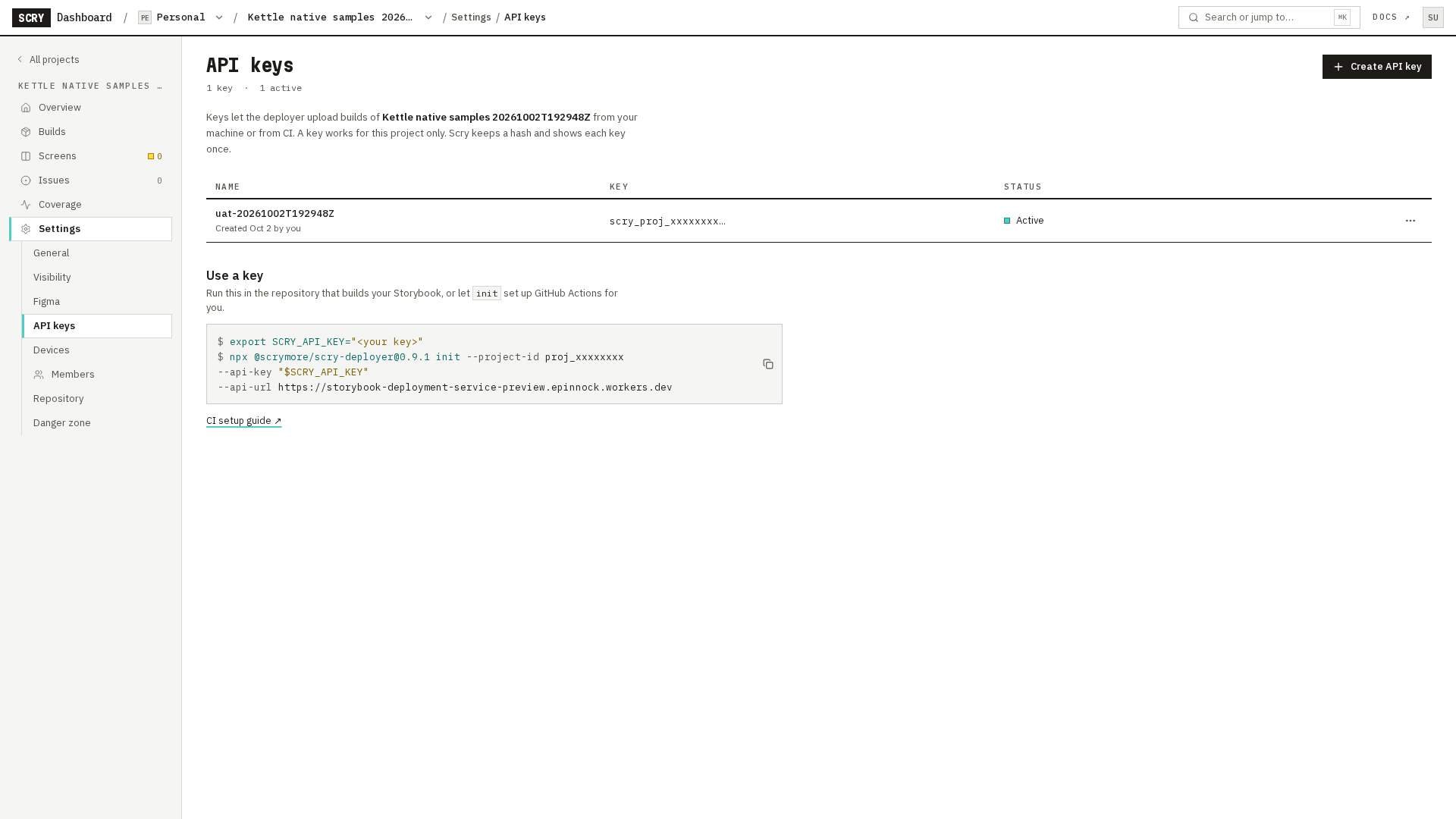
In the dashboard, open your project, then Settings ▸ General for the project ID and Settings ▸ API keys to generate a key. Keys are project-scoped: a key only uploads to the project it was created in. Copy the key when it is shown and keep it out of chat and committed files.
1. Install: the skill, or the sample
There are two ways to get the capture setup into a Flutter app.
Use the Scry skill (for your own app). Install it in your app's repository:
npx skills add scryorg/scry-node --skill scry-native-capture-setupThe installer works with Claude Code, Codex and Cursor, and needs Node.js 22.20 or newer; see Set up with AI for the details. Then ask your assistant:
Set up Scry capture for this app.
The skill recognises a Flutter app by its pubspec.yaml. It inspects your project and asks only what it cannot find: which screens matter, your project id, and whether you want CI. It adds files for capture only:
integration_test/scry/screens.dart, the registry: one entry per screen with itsid, name and the widget, built with fixed data so it renders the same every run;integration_test/scry_capture_test.dartandtest_driver/integration_test.dart, the capture on an emulator or simulator;test/scry_capture_test.dart, the headless capture;scripts/capture.sh,scripts/make-scf.mjsandscripts/screens.json;- optionally, the CI workflow;
- two lines in the
dev_dependenciesofpubspec.yaml:integration_testandflutter_test. Both ship inside the Flutter SDK, so nothing is downloaded from pub.dev.
Nothing in lib/ changes. If a device is available where the assistant runs, it runs the capture and upload --dry-run and shows you the screenshots; otherwise it lists the commands for you to run. It never uploads, and never touches your API key, without your go.
Install the Scry skill with npx skills add, then ask your assistant to set up Scry capture. It adds a screen registry, capture tests and scripts, and two dev dependencies. Nothing under lib changes. With no device on this machine it used the headless path, ran the capture and a dry run, and left the upload to you.
Or start from the sample (a working example). Clone the Kettle sample app, a small coffee-order app with six screens: Menu, Item Detail, Order, Order placed, and the two components QuantityStepper and Button states.
git clone https://github.com/scryorg/scry-sample-flutter.git
cd scry-sample-flutter
flutter pub getre:^Got dependencies(flutter pub get also lists any dependency with a newer version; that part differs from day to day.)
2. Capture your screens
With no device (headless)
This renders each registered screen with flutter test and writes the bundle. It needs no emulator or simulator.
bash scripts/capture.sh headlessAll tests passed!
scf: 6/6 captured, 0 skipped -> .scry/capturels .scry/capture .scry/capture/imagesThe six images are 1170 by 2532 pixels (390 by 844 points at 3× density), drawn with the fonts your app declares (the sample bundles Inter) plus Flutter's own Roboto and Material Icons. The script refuses to write a bundle if no fonts could be loaded, because the screenshots would show black blocks instead of text.
On an emulator or simulator
Start an Android emulator, or boot an iOS Simulator, then run the script for that platform. The screens are driven by flutter drive with the integration_test package, and each screenshot is the app surface of the device (the status bar is not part of it, and the capture test hides the system bars so none leaks in).
# Android emulator (or a device) reachable by adb
bash scripts/capture.sh android

# iOS Simulator, on a Mac
bash scripts/capture.sh iosIn both cases .scry/capture holds one image per screen and a small manifest. The device path labels the build Flutter · Android or Flutter · iOS and records the device name and OS version in the manifest; the headless path records flutter_test 390x844@3x. Both device paths were run end to end on the sample: on an Android 14 emulator (Pixel 6 profile) the six images are 1080 by 2272 pixels at 2.625× and the dry run says Bundle valid: 6 captures, source flutter-golden:android; on an iOS 18.6 simulator they are 1179 by 2556 pixels at 3× and it says source flutter-golden:ios. If more than one simulator is booted, name the one to use with IOS_UDID=<udid> bash scripts/capture.sh ios.
Add one of your own screens
Open integration_test/scry/screens.dart (it lives under integration_test/, so it never ships in a release build) and add one entry to the registry: an id, a display name, and the widget with its fixed data. Add the matching entry to scripts/screens.json, which is the list the capture script reads. Run the script again and the bundle holds one more capture.
The id is the screen's identity across builds. Use a route or class name, never a title a person might edit.
Run the capture script with no device. It renders each registered screen with flutter test, then writes a small manifest. When it finishes, .scry/capture holds one image per screen. On an emulator or simulator the script is the same, with android or ios.
3. Check the bundle
Check the bundle before you send anything. Run the upload command with the dry-run flag. It validates the bundle with the same validator the real upload uses, then stops. Nothing leaves your machine, and no key is needed.
npx @scrymore/scry-deployer upload .scry/capture --dry-runValidating .scry/capture ...
✅ Bundle valid: 6 captures, source flutter-golden:other.
Dry run: not uploading. Bundle ZIP: {{*}}The source line comes from the manifest: flutter-golden:other is how Scry knows this is a headless Flutter capture. A bundle captured on an emulator says flutter-golden:android, and on a simulator flutter-golden:ios. A rejected bundle prints every problem with its code (see Troubleshooting).
A valid bundle can still be a short one
The validator accepts a bundle that is missing screens, because the manifest lists them as skipped. Check the count in Bundle valid: N captures against the number of screens you registered, and look at the images in .scry/capture/images/ for a keyboard, a permission dialog, a loading spinner or boxes where text should be.
4. Upload
Now upload. Set your project id and API key as environment variables, then run the same command without the dry-run flag. It validates the bundle again, stores it, and prints the build number once the upload is queued for indexing.
export SCRY_PROJECT_ID=proj_xxxxxxxx
export SCRY_API_KEY=sk_live_xxxxxxxxReplace both placeholders with the values from your project. The placeholders above are not real and are rejected if you use them.
npx @scrymore/scry-deployer upload .scry/captureValidating .scry/capture ...
✅ Bundle valid: 6 captures, source flutter-golden:other.
Bundle stored ({{*}}, build #{{n}}).
Bundle complete: attempt 1/3, {{*}}, timeout {{n}} s...
Bundle complete: sent {{*}} in {{*}} s (attempt 1/3).
✅ Bundle uploaded (build #{{n}}).
⏳ Indexing has been queued, not finished. Components are searchable once the build shows processingStatus "completed".The CLI reads SCRY_PROJECT_ID and SCRY_API_KEY itself. You can pass --project and --api-key instead, but then the key sits in your shell history, so prefer the environment.
5. See it in Scry, and search it
Open your project in the dashboard. The new build appears in the Builds tab with the source Flutter · Other and a device line. Open the build to see its screens on the Capture tab. Once it is indexed, its screens are searchable. This recording runs the same search the MCP server runs, for quantity stepper.
The Builds tab, the source chips and the project's other capture sources are covered in Capture sources. A native build has no Storybook behind it, so there is no "Open in Storybook" link. A result from this build carries its source type flutter-golden and its platform, and the MCP server prints a Platform: line such as Flutter · Android; when the capture recorded a source file, it also prints Source: <file>:<line>. Ranking depends on what else is in your project.
- Ask your assistant. Connect the MCP server and ask for a screen in plain words, for example
quantity stepper. - See the builds in the dashboard. The Builds tab lists each build with its source, device and screen count.
- Link screens to designs. Linking a native screen to a Figma frame from the Scry Link plugin is not available yet.
Put it in CI
The sample ships two GitHub Actions workflows in .github/workflows/:
ci.ymlbuilds and tests the app on every pull request, on a GitHub-hosted runner, with no secrets.scry-capture.ymlcaptures headless on an Ubuntu runner and uploads, only on a push to the default branch. Pull requests from forks never reach it, so your key is never exposed to code you did not review.
CI uses the headless path only. An emulator on a GitHub-hosted runner is slow and flaky, so capture on a device from your own machine when you want your screens at a phone's real size and density, labelled Flutter · Android or Flutter · iOS.
Add the project id as a repository variable and the key as a repository secret:
| Where | Name | Value |
|---|---|---|
| Repository variable | SCRY_PROJECT_ID | your project ID |
| Repository secret | SCRY_API_KEY | your project API key |
The upload step in the workflow is the command from step 4:
      - name: Upload to Scry
        run: npx @scrymore/scry-deployer upload .scry/capture
        env:
          SCRY_PROJECT_ID: ${{ vars.SCRY_PROJECT_ID }}
SCRY_API_KEY: ${{ secrets.SCRY_API_KEY }}Make it your own
To turn the sample into a build in your own project, change three things:
- The screens list in
integration_test/scry/screens.dartandscripts/screens.json: replace the Kettle screens with yours, each with a stableid. - The project id:
SCRY_PROJECT_ID. - The key:
SCRY_API_KEY, from your project's Settings ▸ API keys.
To wire an existing app instead of copying the sample, use the skill (step 1). The skill adds no non-dev dependency to your app and does not change a release build: its files sit under integration_test/, test/, test_driver/ and scripts/, and nothing in lib/ is touched. It does not cover UIKit-only apps: for those, and for any tool of your own, the bundle format is documented on Capture bundle format.
What the skill adds, if you would rather do it by hand
The sample app is the worked example of each piece. Copy them from scry-sample-flutter:
| Piece | File | What it does |
|---|---|---|
| Screen registry | integration_test/scry/screens.dart | one entry per screen: id, name, the widget with fixed data |
| Device capture | integration_test/scry_capture_test.dart, test_driver/integration_test.dart | opens each screen on an emulator or simulator and saves a PNG |
| Headless capture | test/scry_capture_test.dart | renders each screen with flutter test and fails if fonts did not load |
| Capture script | scripts/capture.sh | runs android, ios or headless, then calls the bundle writer |
| Bundle writer | scripts/make-scf.mjs | writes scf.json and images/<id>.png |
| CI | .github/workflows/scry-capture.yml | captures headless and uploads on a push to the default branch |
Troubleshooting
HTTP 401 Unauthorized - Authentication required The upload reached Scry without an API key. The service's own message is Missing X-API-Key header. Check that SCRY_API_KEY is set in the shell that runs the upload (test -n "$SCRY_API_KEY" && echo set || echo missing), then run it again. In CI, check that the repository secret exists and that the workflow passes it in env. If the response carries a request id, the CLI prints a Ref: line; quote it when you contact us.
HTTP 401 Unauthorized - Invalid API key format The value is not a Scry project key. The placeholder sk_live_xxxxxxxx on this page produces exactly this error; copy a real key from Settings ▸ API keys.
HTTP 403 Forbidden - Project mismatch The key belongs to a different project than the one you uploaded to. A key only works for the project it was created in: use the key from the same project as SCRY_PROJECT_ID.
❌ --project is required to upload. SCRY_PROJECT_ID is not set and no --project was passed. --dry-run works without it; a real upload does not.
❌ The bundle was rejected by the Scry Capture Format validator. Nothing was uploaded. The lines below it name the problem and its code. Two you may meet:
  error DUPLICATE_ID [menu]: Duplicate capture id (2×): menu
error IMAGE_HEADER_UNREADABLE [menu]: Could not read image dimensions from the header: images/menu.pngDUPLICATE_ID means two entries in your screens list share an id: each screen needs its own. IMAGE_HEADER_UNREADABLE means a screenshot file is empty or cut short, which usually follows a capture that was interrupted: run bash scripts/capture.sh again.
scf: 5/6 captured, 1 skipped. A screen did not produce an image, so it is listed as skipped in the manifest. upload --dry-run still says the bundle is valid with five captures, so do not treat a short count as success. Run the capture again and read the lines above the summary for the screen's name.
The screenshots show black blocks instead of text. The headless script checks that fonts loaded before it writes a bundle and stops with scry capture: fonts did not load, so screenshots would show black Ahem blocks instead of text instead of producing one. If you see blocks anyway, a font your app uses is not declared in pubspec.yaml: declare it under flutter: fonts: so it is loaded, then capture again. If the check refuses a font that did load, it is most likely a monospace font (every letter is equally wide, which the check reads as a placeholder): the run stops rather than ship doubtful images, so use a proportional font for the capture.
flutter: command not found. The Flutter SDK is not on your PATH. Install it, add its bin folder to PATH, and check flutter --version.
The build is in the Builds tab but has no screens yet. Indexing runs after the upload: the CLI prints Indexing has been queued, not finished and the screens become searchable once the build is processed. Refresh the Builds tab in a minute.
flutter drive hangs on a new Android emulator and no screenshots appear. There are two causes, and scripts/capture.sh android handles both. First, Android can show its "Viewing full screen" confirmation on top of the app; the script marks it as seen before it starts and puts the old value back when it exits (by hand, run adb shell settings put secure immersive_mode_confirmations confirmed once). Second, a brand-new emulator keeps doing first-boot work for a minute or two after it reports it has booted, and that work can destroy and relaunch the app while flutter drive waits on the old one. The script waits for the emulator to settle, retries the drive once if the app was relaunched, and otherwise stops with exit code 4, the likely causes and the exact command to retry. Wait a minute and run that command again, or use the headless path.
An emulator or simulator problem. Run flutter devices to check that your emulator or simulator is listed, start one, and run the script again. If you cannot get a device running, use the headless path, or let the skill stop and print the exact commands for you to run instead of claiming a capture.
For problems with the Scry CLI itself, see Troubleshooting.
Privacy and data
An upload sends the bundle and nothing else from your project: the PNG screenshots, and scf.json, which lists each screen's id and name, its device and scale, and the source file and line if you registered them (a path and a number, not the code). The upload also carries the commit SHA and branch name it is run from (read from your CI environment or the local git checkout). No widget tree and no source text is uploaded: --include-source, the option that would also upload each capture's source file, is off by default and this page never uses it.
The capture runs entirely on your machine, and the Scry skill never uploads without your go. The CLI reports errors to Scry's error tracker (errors only); set SCRY_TELEMETRY=0 or DO_NOT_TRACK=1 to turn that off.
Feedback and support
Something broke or felt wrong? Tell us on the feedback form or email feedback@scrymore.com. Include the Ref: line from the CLI if it printed one.
Changelog
- First version of this page.